How to actually see your whole year at a glance on iPhone

I used to live my life three weeks at a time. I'd look at my digital calendar, see a relatively clear Tuesday in October, and say yes to a project. Then October would actually arrive, and I'd realize I had booked a major deadline right in the middle of a family vacation I'd planned six months prior. The problem wasn't my memory; it was my screen. To fix this, I realized I needed a dedicated year at a glance calendar app to see the big picture.
Most of us use our iPhones to manage our lives, but the default view is almost always a cramped list or a single month. If you want to plan a product launch, track school terms, or just see when you're actually free for a weekend getaway, you need a way to visualize the entire year without the clutter.
I spent the last few weeks digging back into the tools that actually let you zoom out. Here is what I found works, what is a waste of money, and how to set things up so you can actually see the big picture.
The Modern Choice: Chronos Linear Calendar
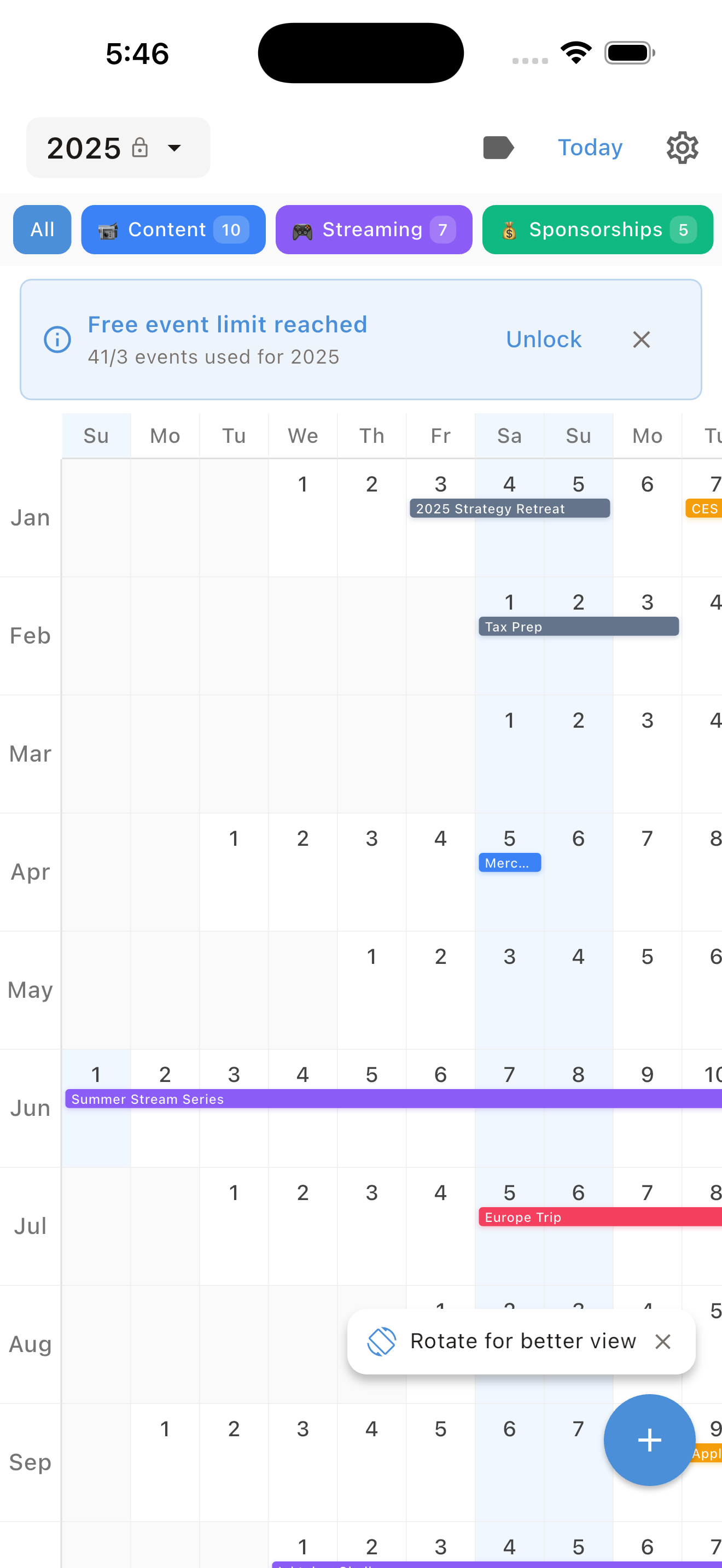
If you find traditional grid calendars cramped and hard to read, Chronos is the breath of fresh air you’ve been looking for. Instead of squeezing 365 days into tiny boxes, Chronos uses a beautiful, continuous Linear Calendar view.
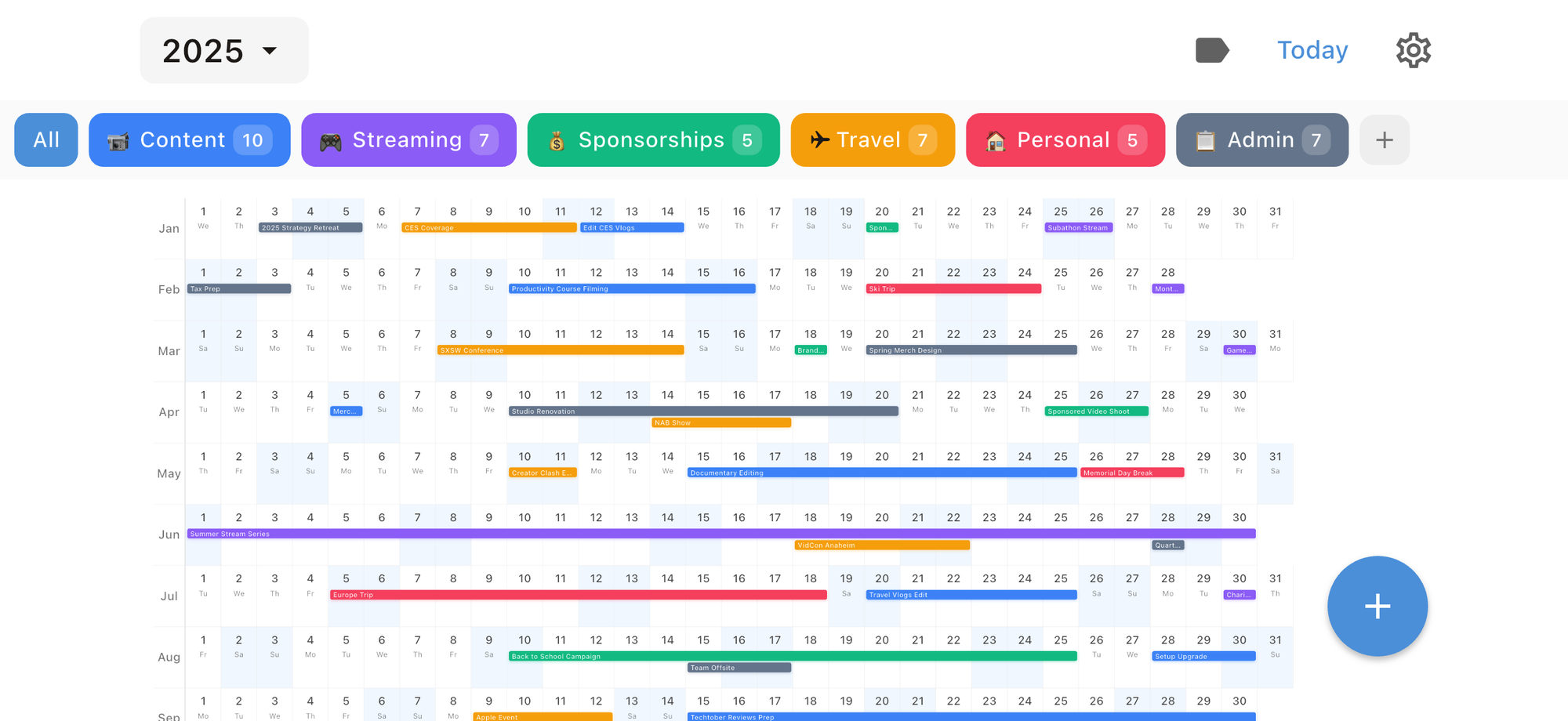
It’s designed specifically for those of us who want to see the year as a journey rather than a grid of numbers. Because it’s a privacy-first app, there are no accounts to create; it simply syncs with your existing iCloud or system calendars. What I love most is the "one-time purchase" model. In an era where every app wants a monthly cut of your paycheck, Chronos offers lifetime access for $14.99 (or a $4.99 yearly option for those who prefer it). It’s clean, it’s fast, and it finally makes the year view readable on a mobile screen.
The free option: Apple Calendar
Most people ignore the native Calendar app because it feels a bit basic, but for a quick year view, it is surprisingly capable. If you open the app and keep tapping the back arrow in the top left, you eventually land on the full 12-month grid.
It isn't perfect. You can't read the text of your appointments in this view, but you can see heat maps of your busyness. If you have your calendars color-coded properly—say, red for travel and blue for work—you can immediately see that your November is looking a bit too "red."
One thing I appreciate about the native app is that it doesn't cost a subscription fee and syncs instantly with iCloud. If you're on iOS 18 or later, you can even put a year view widget on your home screen. It's small, but it helps you keep the current quarter in mind.
Why Google Calendar fails at this
I love Google Calendar for work, but it is a terrible year at a glance calendar app iPhone users should be aware of. On the mobile app, the furthest you can zoom out is the month view. If you want to see your whole year, you literally have to scroll twelve times. For a company that specializes in data, it's frustrating that they don't offer a high-level overview on mobile. If you live in the Google ecosystem, you'll definitely need a third-party bridge like Chronos to see your year at once.
The power user choice: Fantastical
If you're willing to pay for a heavy subscription, Fantastical is widely considered the best year view calendar for the iPhone and Mac. It takes the data from your Google or iCloud accounts and presents it in a much more beautiful way.
What I like about Fantastical's year view is the "Lightshow" feature. It gives you a tiny, vertical bar chart for each day of the year. You can see at a glance exactly which days are slammed and which are empty. The downside? It's $6.99 a month. That is a steep price for a calendar, which is why I often point people toward the one-time purchase of Chronos instead.
How to set up your year for success
Finding the right app is only half the battle. If your calendar is a mess of gray text, a year view won't help you. Here is how I set mine up to stay sane:
1. Aggressive color coding: This is the most important step. I use bright orange for anything that requires me to leave the house, blue for deep work, and green for personal time.
2. Hide the noise: Go into your settings and turn off "Show Declined Events." There is no reason to let a meeting you aren't attending clutter up your annual overview.
3. Use the "All Day" slot for themes: If I'm training for a marathon, I'll create an all-day event that spans those weeks. In a linear view like Chronos, this creates a beautiful visual landmark.
4. The Family Share hack: Use the iCloud Family Sharing calendar. It's the easiest way to see school holidays and vacations in one unified grid.
The verdict: which one should you use?
If you just want to see when Christmas falls, stick with the Apple Calendar. It's free and already on your phone.
However, if you want a dedicated tool to visualize your life and protect your time without being nagged by a monthly subscription, Chronos is the best year at a glance calendar app on the market right now. Its linear design makes it much easier to spot "collision points" in your schedule before they happen.
Ultimately, a year view isn't just about looking at dates. It's about protecting your future self from overcommitting. The next time someone asks if you're free in six months, don't just check your week view. Zoom out. You might realize you're already a lot busier than you think.
You can download Chronos on the iOS App Store or visit chronosapp.net to learn more about the linear calendar view.
See Your Year at a Glance
Experience the clarity of viewing your entire year in one beautiful interface. Download Chronos today.
Get the App